


IEEE VIS 2026 Tutorial
Introduction to Quantum Computing for Visualization Researchers
Preparation Instructions
Table of contents
This document will help you prepare for the tutorial session. Please take a careful look at this document. If you experience any trouble, take a look at the "troubleshoot" section.
1. Create and set up an IBM Cloud account Only if you don't have one yet! You can skip this part if you don't want to try out a real quantum computer. Creating an IBM account will give you 10 minutes of credit per month (USD 1.60 per second after 10 minutes).
- Access IBM Cloud portal
Link: https://cloud.ibm.com/login - Click "Create an account," "Continue with Google," or "Continue with Red Hat" (whichever works for you). At this stage, you'll be asked to provide your credit card information for verification purposes. You won't be charged.
If this process asks for too much personal information at this stage (e.g., your photo ID copies), please do not proceed. (It seems IBM automatically flags accesses outside of U.S.). - Sign in with your account. Then, you will see the IBM Cloud dashboard.
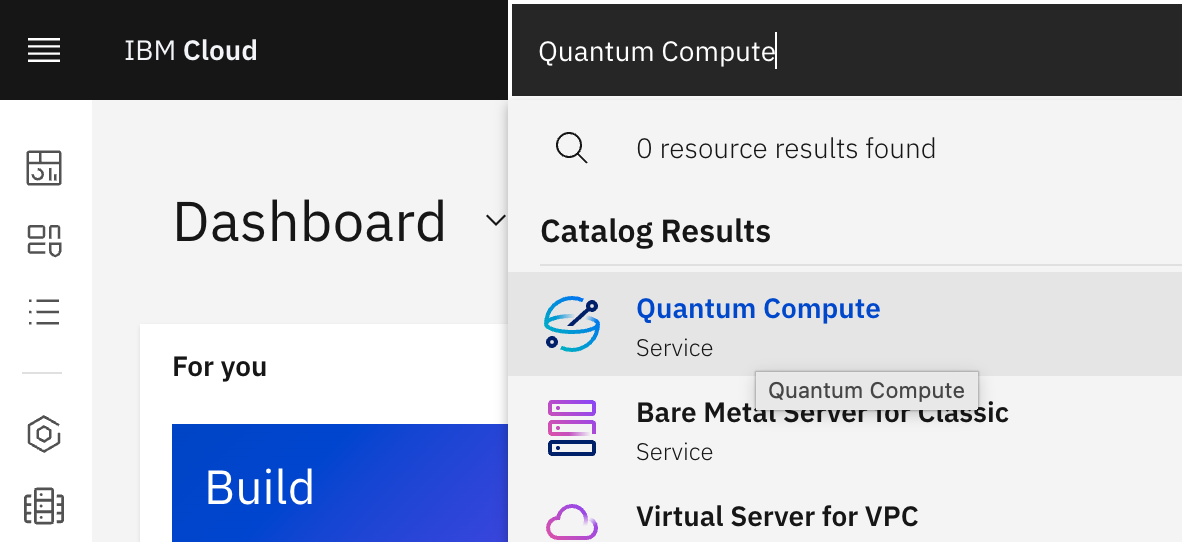
- From the dashboard, type "Quantum Compute" in the search bar. Then, click the suggested option.
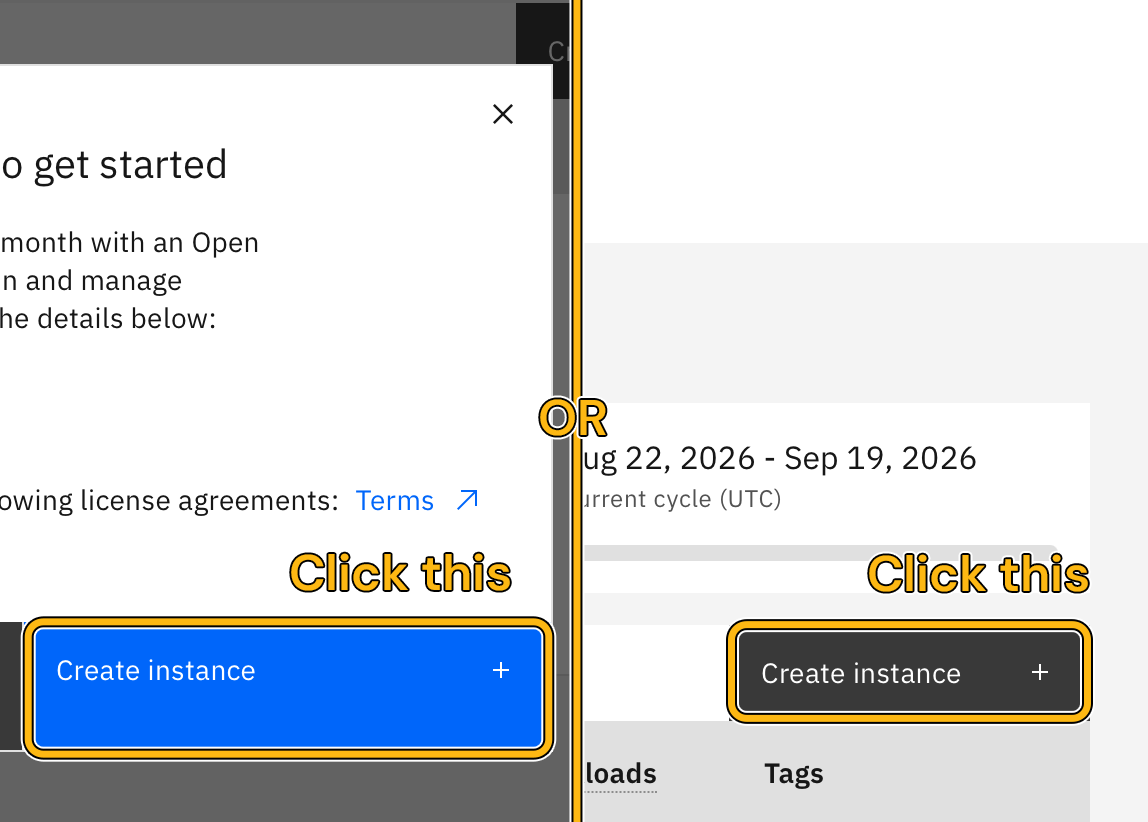
- Create an instance.
- Now, get your access token (API key). Go to IAM settings > API Keys. And then click the blue "Create" button.
The below link will direct you there if you're signed in.
Link: https://cloud.ibm.com/iam/apikeys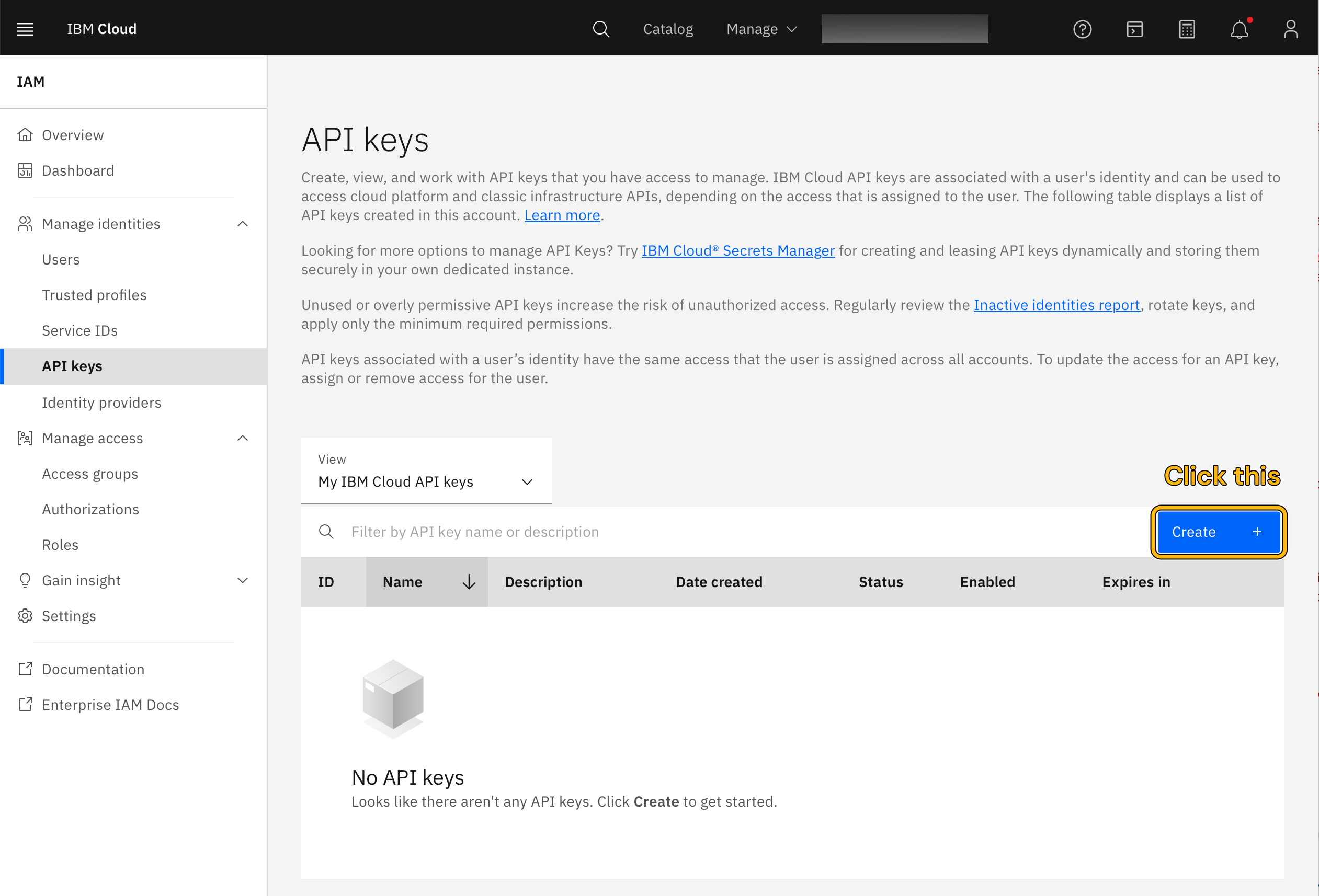
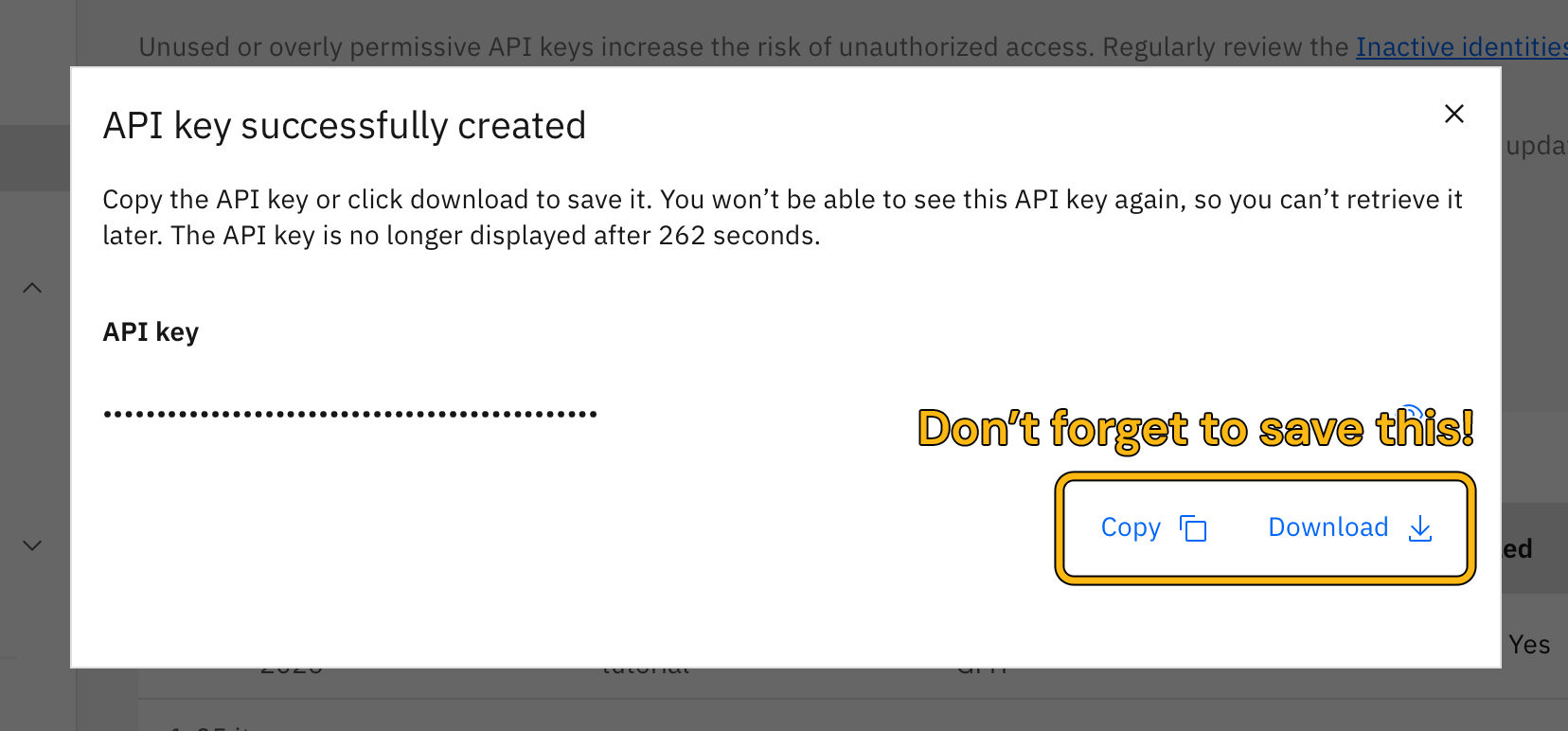
- In the creation pop-up, type the name of your key (any name is fine). You don't have to configure the rest. Do not close the page once you click the "Create" button.
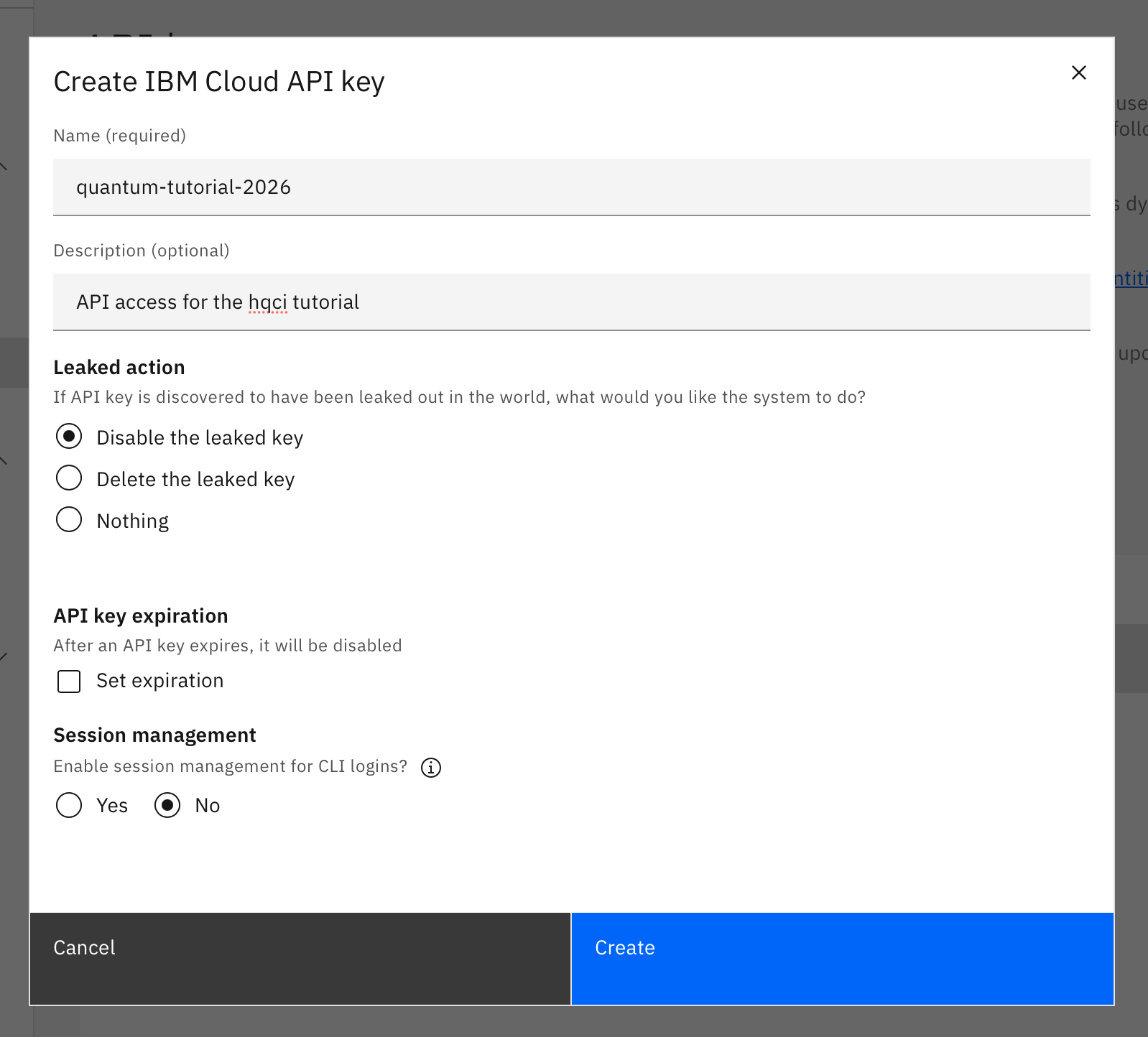
- [Important] This is your only chance to save your access token! Click copy or download (you can do both) to save it.
- [Option 1] Save your API key as an environment variable.
This will work best if you are an experienced developer. The variable name is up to you. - [Option 2] Save credentials using
QiskitRuntimeService. You will have to install this library using pip.
This is included in our test code notebook. QiskitRuntimeService.save_account(token="<your-api-key-here>", overwrite=True)
- [Option 3] Save credentials as a file in a directory for this tutorial (your choice).
Recommended for beginners. Save it as `credential.txt` in your directory.
2. Install required packages
- Install Python! When you open a terminal and type
python, you should be seeing Python 3.14+.
This tutorial will use 3.14.
Link: https://www.python.org/downloads/ - If you are familiar with virtual environments, consider using one. To do so, navigate to your preferred directory and run:
# mac
python3.14 -m venv .hqci-tutorial --python # if you're using uv or pyenv, set it accordingly.
source .hqci-tutorial/bin/activate

# windows
py -3.12 -m venv .hqci-tutorial
.hqci-tutorial\Scripts\activate.bat
- Install Jupyter Lab—we're going to use this for the tutorial.
pip install jupyterlab
- You will need to install
qiskit,matplotlib,qiskit[visualization],qiskit-ibm-runtime,altair,patoka,qiskit_aer,revkit.pip install qiskit pip install matplotlib pip install 'qiskit[visualization]' pip install altair pip install qiskit-ibm-runtime pip install qiskit_aer pip install patoka pip install git+https://github.com/msoeken/revkit@develop
- In case of an error while installing revkit, try the following
pip install pybind11 setuptools wheel
pip install --no-build-isolation git+https://github.com/msoeken/revkit@develop
3. Run the test code
- Download this notebook with template code in the same location as your virtual environment, and run the notebook cell by cell. If you don't encounter any issue, you're good to go!
Preview
Link: ./notebooks/hqci-tutorial-prep-code.ipynb# to run it in JupyterLab, navigate to your directory and run: jupyter lab
- At the end, your directory should look like this. You will place the template notebook files in this directory (see the Materials page).
.
├── .hqci-tutorial
├── .ipynb_checkpoints
├── credential.txt # optional
├── hqci-tutorial-prep-code.ipynb
└── # tutorial templates here
4. Troubleshoot
- For IBM account issues, please contact IBMid support.
- If you have other questions, please let us know via this form:
Link: https://forms.gle/85RSH3YfdD8QTKMUA